# macOS® Installation
Source: https://help.malighting.com/grandMA3/2.4/HTML/onpc_macos_installation.html
This is grandocs, an unofficial mirror of MA Lighting documentation. For authoritative or safety-relevant information, cite the canonical page on help.malighting.com.
---
To install grandMA3 onPC on macOS®:
1. Download the installation file from .
2. On the left side of the web page, select the grandMA3 series.
3. Click on Software + Release Notes.
4. Click grandMA3 onPC Software for macOS, x.x.x.x to download the installer.
5. The EULA and Third-Party Acknowledgments pop-up opens:
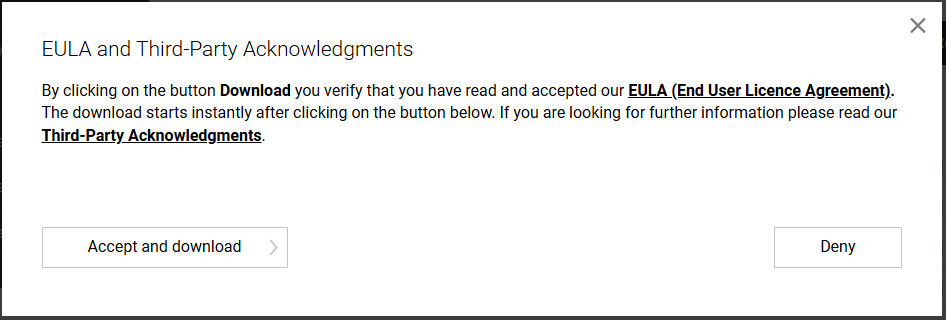
6. Click Accept and download.
7. Navigate to your Downloads folder and double-click on grandMA3\_onPC\_mac\_vx.x.x.x.zip. The package is unzipped, creating an "ma" folder.
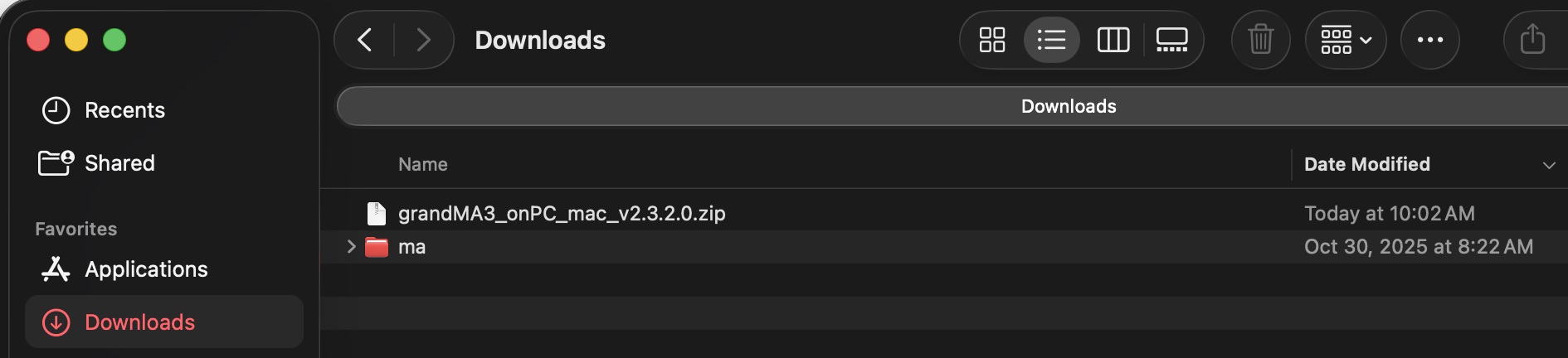
8. Expand the "ma" folder and double-click the installation program grandMA3\_onPC\_x.x.x.x.pkg. The Installer opens:
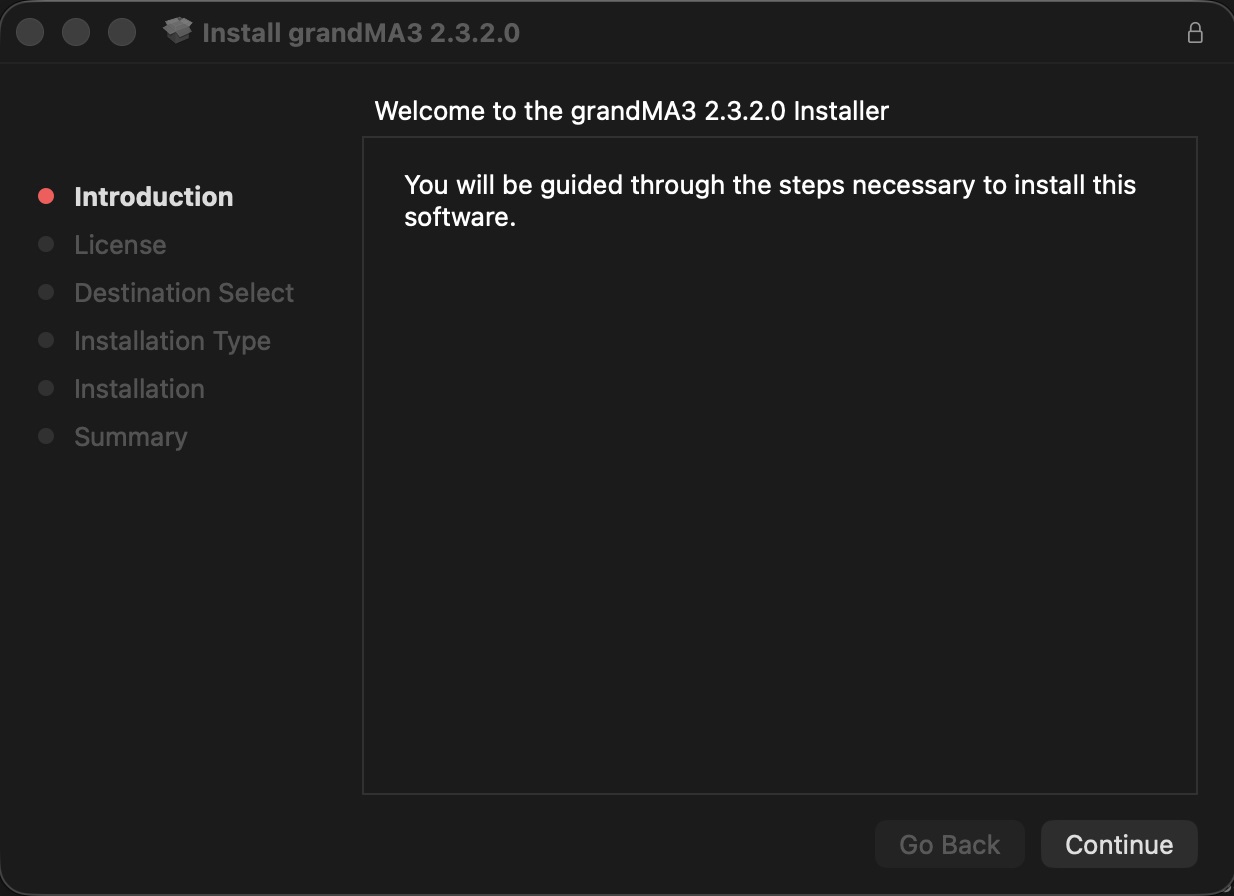
7. Click Continue. The software license agreement opens:
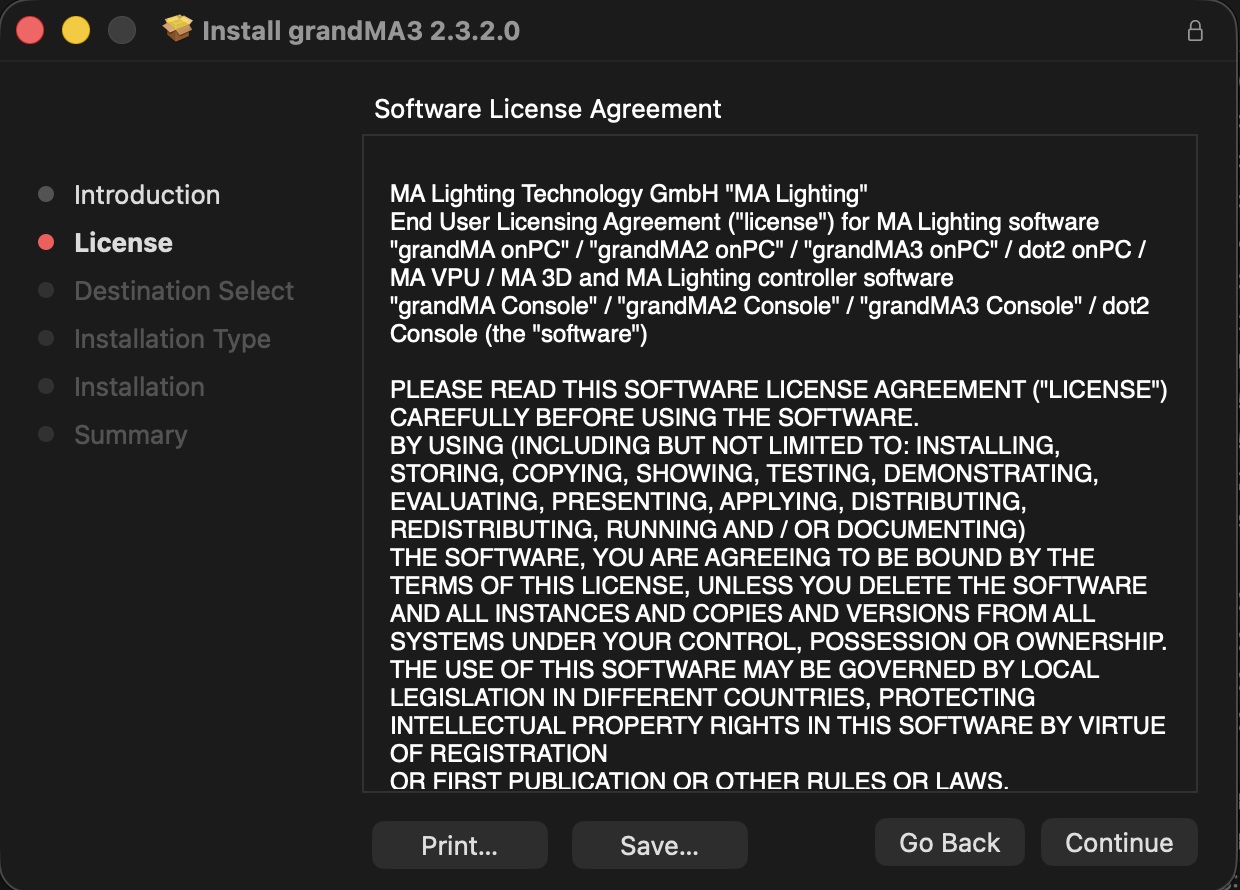
9. Click Continue:
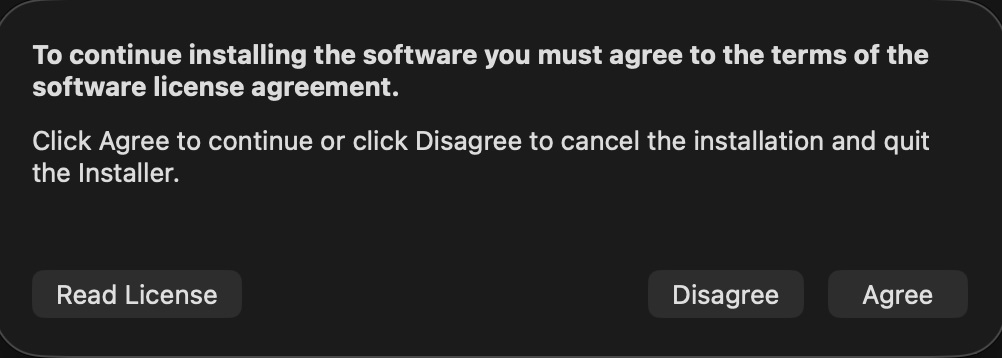
1. Click Agree, and the installation utility opens:
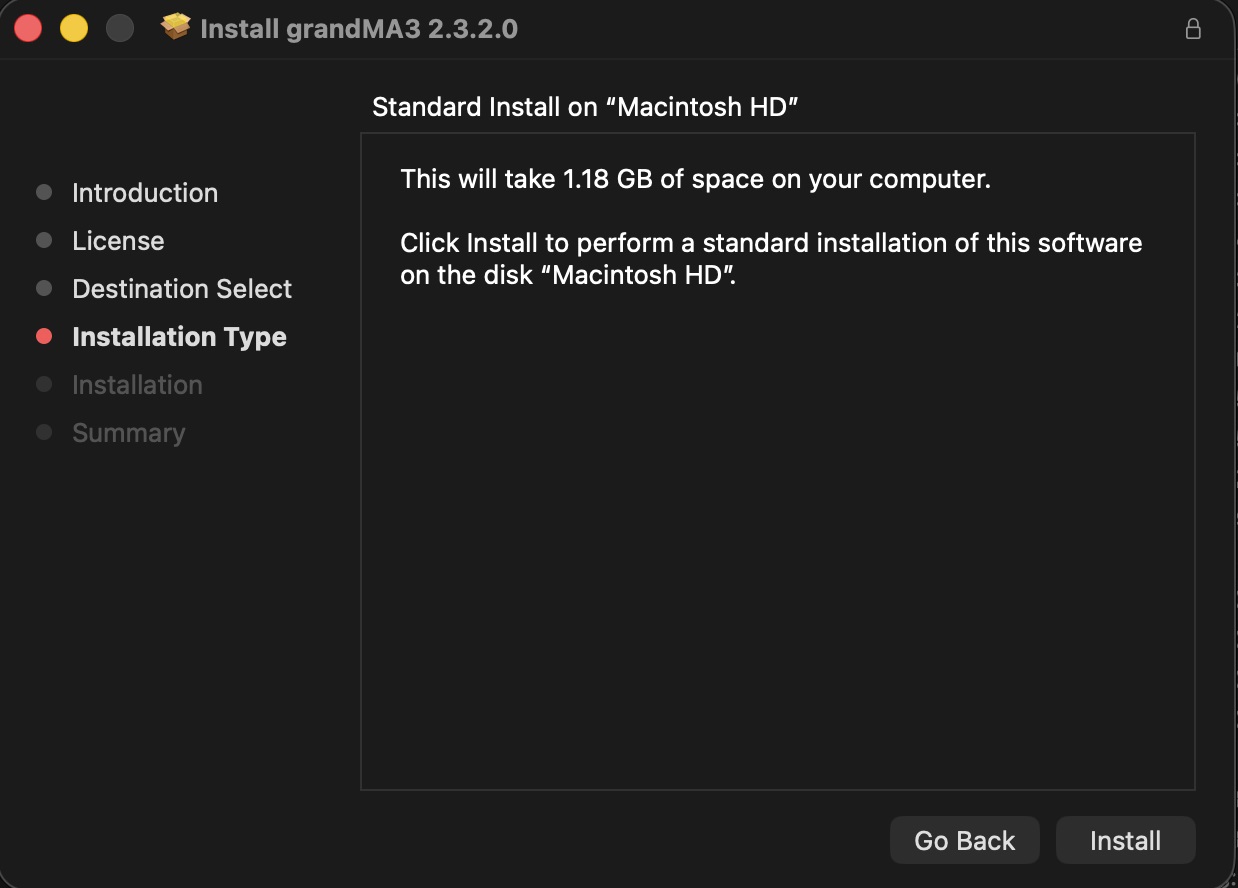
1. Click Install to finally start the installation.
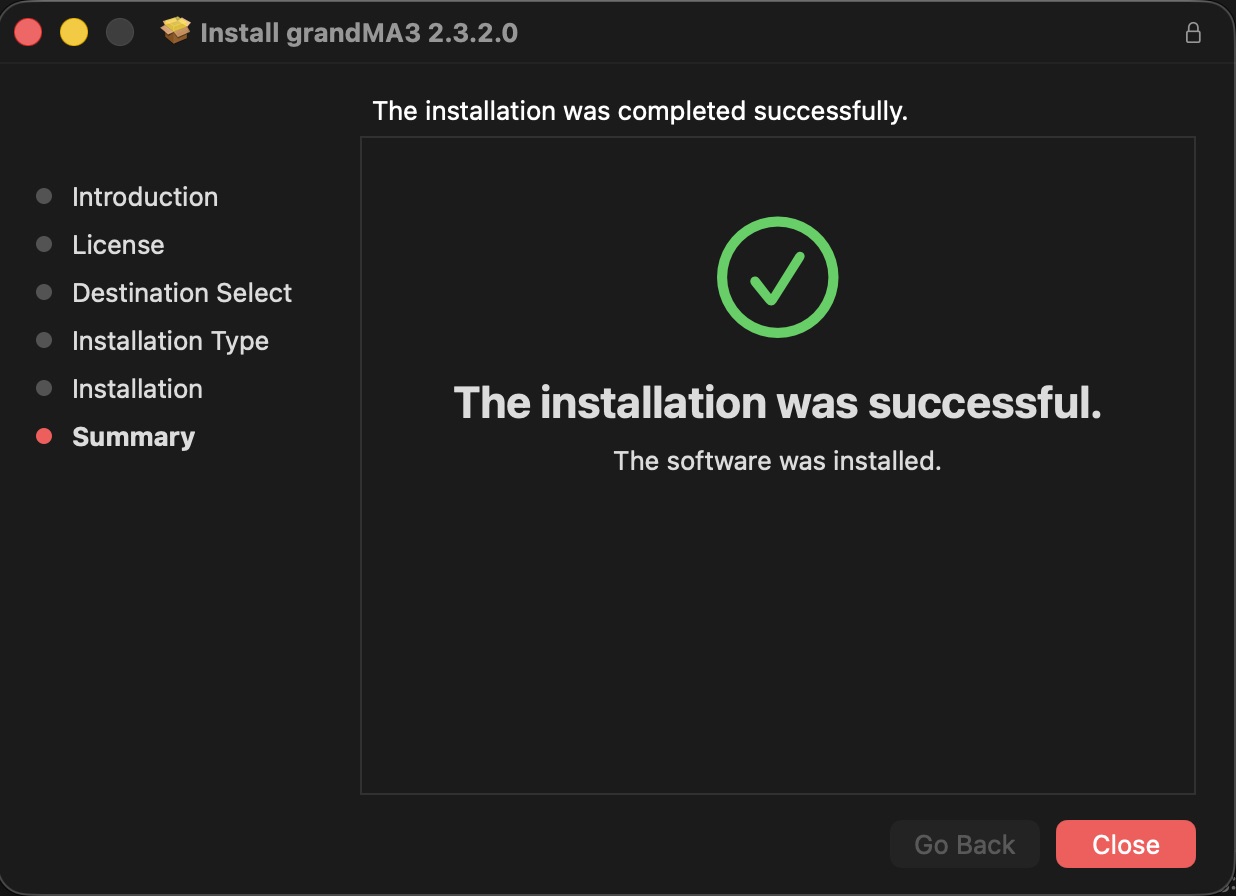
1. Click Close.
The software is installed in the standard Applications directory. The resources are located in /Users/\/MA Lighting Technology.
### Install Location options
When two or more hard drives or USB drives are detected, the installer offers to change the installation location:
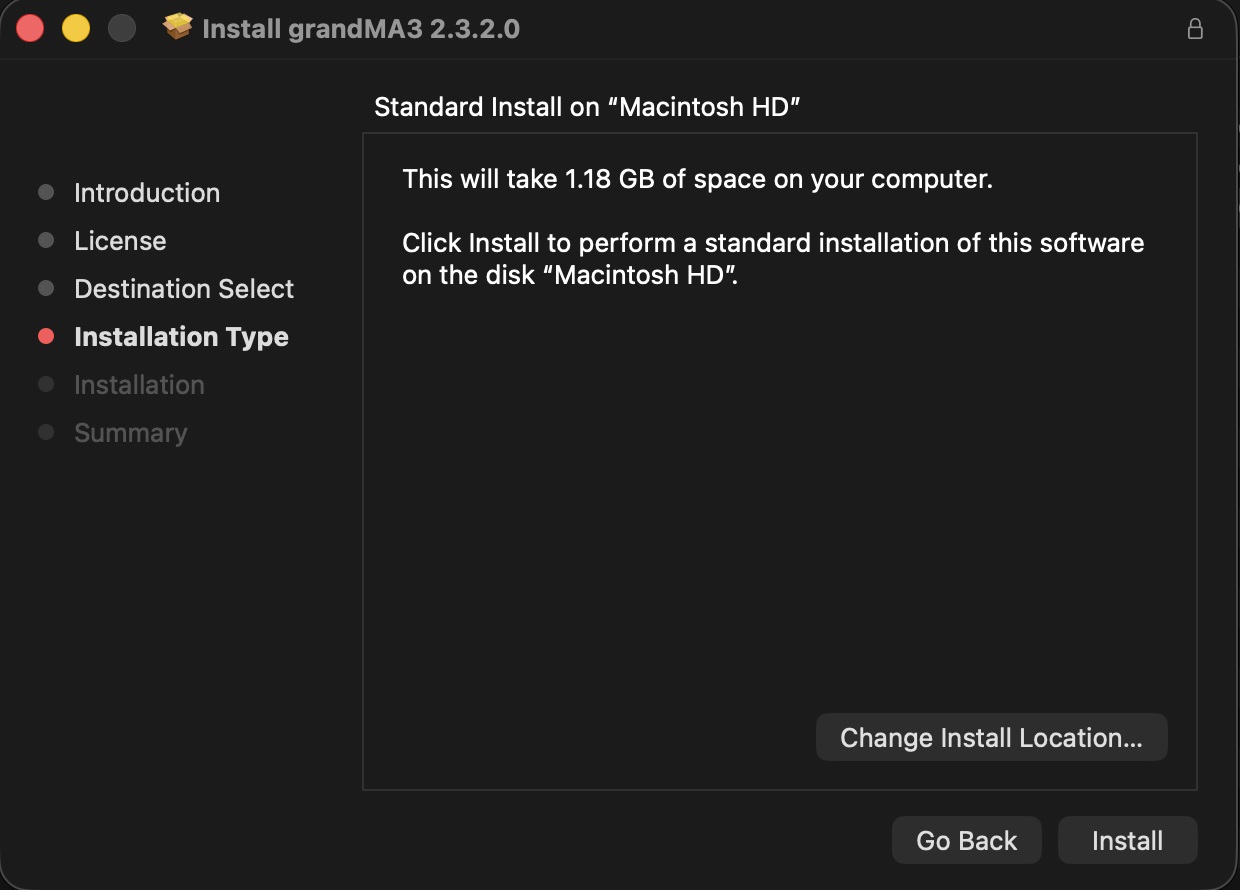
1. Click Change Install Location, then select a location:
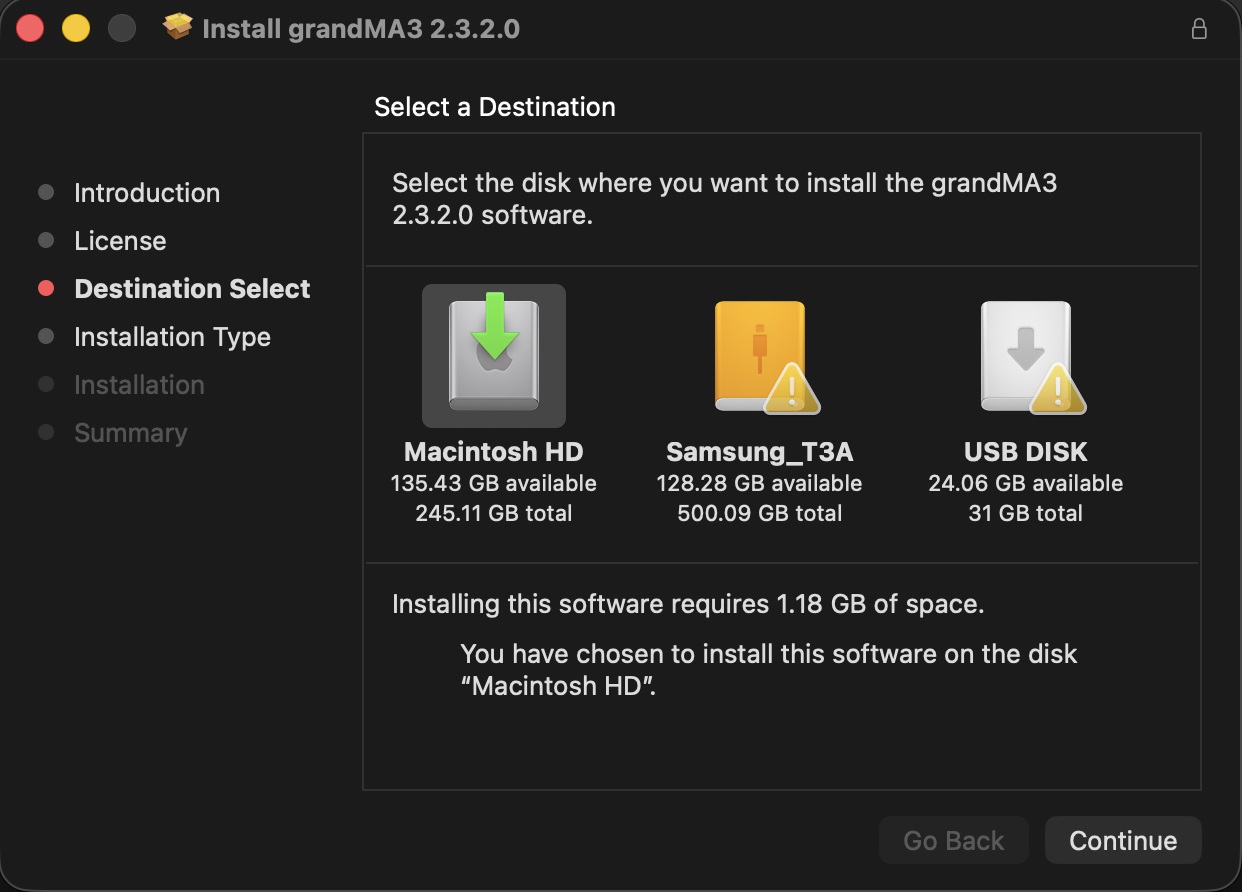
10. Click Continue, and resume by following steps 11 and 12 above.